

No recording yet
English (en)

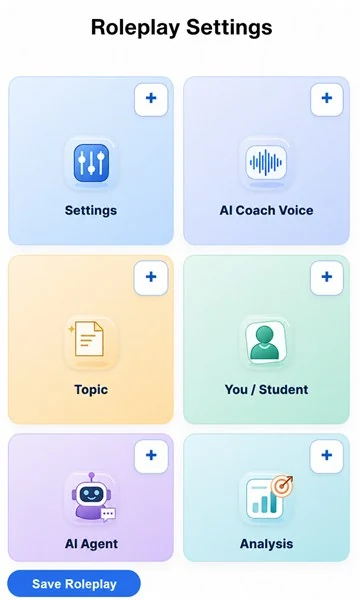
Roleplay Settings

Below you can define the roleplay scenario you want to practice. Under Settings you can set the scenario name and language. Then click Roleplay, AI Conversation Settings, and Keywords and Coaching Categories to complete your roleplay.

Voice Input Test

Use this isolated admin-only test page to try Web Audio API microphone activity, silence detection, MediaRecorder learner-turn chunks, Deepgram transcription per turn, and the GPT response flow without changing the current roleplay recording screens.

Test controls

Ready to start the isolated voice input test.

Microphone activity

Speak naturally. The test measures the background noise floor and ends a learner turn when the microphone level drops back near that noise floor for the configured silence window.

Deepgram learner chunks

GPT responses

Buy New Credits

Use this page to buy extra AI Voice practice minutes when your credits are low. Choose the bundle that fits how much you want to train, then complete the payment flow. After a successful payment, the new minutes are added to your account. You can then return to AI Voice Roleplay Roleplay and continue practicing.

Buy more recording minutes

Choose a bundle for extra AI roleplay practice time.

Good for testing

Voice - STARTER

60 min

€5

€0.083/min

Card + iDEAL

Better value

Voice - GROWTH

240 min

€16

€0.067/min

Card + iDEAL

Admin

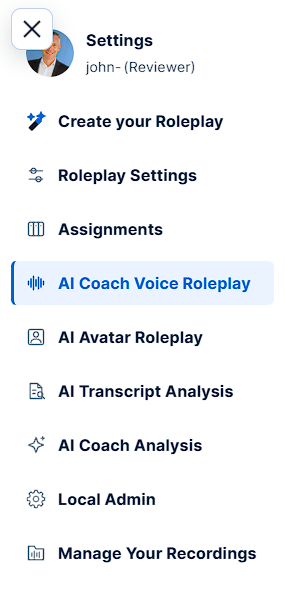
Use the Admin area to manage technical settings, users, remaining minutes, and server-side roleplay settings. You can inspect user scenarios, transcripts, and AI Coach results when support or review is needed. Administrators can also export and import roleplay settings between environments. After changing settings, test the relevant roleplay flow before inviting learners to use it.

Admin Technical Settings

Roleplay Settings Transfer

Export or import all server-side roleplay scenario settings. Use this to move roleplay settings to another environment.

No settings transfer started yet.

GPT reasoning uses the server-side admin API key.

Speech-to-text

Login

TTS OpenAI Settings

Neural speech uses the same server-side key as GPT reasoning.

TTS ElevenLabs Settings

ElevenLabs TTS key is stored server side for the AI Agent Voice Roleplay workspace.

Deepgram Settings

Deepgram is used for final recording transcription and filler sound detection.

Netlify Hosting Settings

Netlify billing can be opened directly. If browser automatic login is active, the billing page opens without manual login.

Speed

LiveAvatar

LiveAvatar API key is stored server side for the Avatar workspace.

Email Test

Send a test email using the server environment variables.

Admin settings are loaded from the server before each recording.

Menu Access

Use this table to control which main menu functions are visible for normal users and administrators. Enter 1 to show a menu item and 0 to hide it.

Menu access settings are saved together with Admin settings.

Select a user to review their saved recordings.

Filters
Value

Companies

Create companies that can be assigned to invited learners and used as a filter in assignment overviews.

Roles

Maintain the user roles that can be assigned to invited learners and active users. Existing roles cannot be deleted.

Service Credits

Review available credits and usage status for the external services used by the app. Services with no reliable credits API show a direct dashboard link or the configuration that is still needed.

Click Refresh Credits to retrieve the latest available information.

Edit Voice Time and Avatar Time for users.

Invite Learners

Invite one or more learners by email. The app creates a verified account for each new learner, generates a valid lowercase password, and sends a localized invitation with the login details.

AI Voice Roleplay

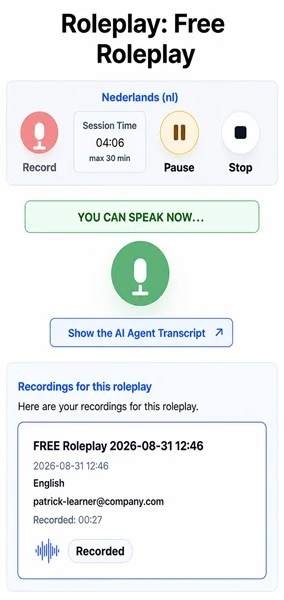
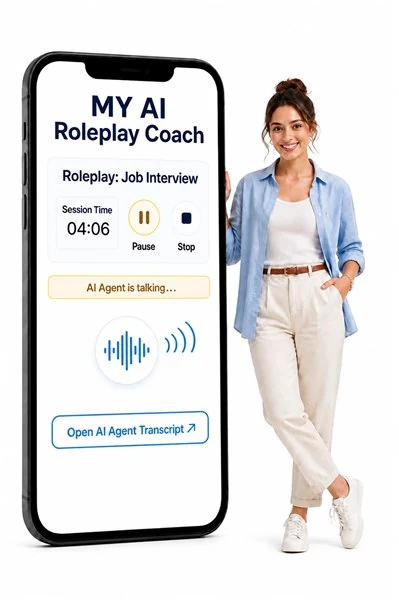
Use AI Voice Roleplay to practice a spoken conversation. Click the Record button and wait for the application status message before you speak. After the session read the AI Transcript Analyses and AI Coach feedback.

Roleplay Assignment (instructions for the person doing this assignment)

Choose the voice for your Roleplay AI Agent.

Choose the AI Agent voice and tune the speaking speed before you start the roleplay.

Using the same OpenAI key as GPT reasoning. Press Play to test Neural TTS.

Adjust the speed to make the AI Agent speak slower or faster during the roleplay.

Choose the conversation length and start the recording.

Choose the session time, start the recording, and wait for the status bar before you speak.

No recording yet

Start recording to see the AI Agent and learner transcript here...

The AI Coach will measure the following main categories during the roleplay.

The AI Transcript Analyses will show your performance on the following items.

AI Agent Voice Roleplay

Use AI Agent Voice Roleplay to test the same voice roleplay flow with streaming TTS. Select a voice for the current roleplay language, preview the sample, then record the roleplay. This workspace is only visible for administrators while the integration is being tested.

Roleplay Assignment (instructions for the person doing this assignment)

Choose the voice for your Roleplay AI Agent.

Choose an accent and voice for the AI Agent, play a sample, and tune the speaking speed before you start.

Load voices to select a TTS voice for this roleplay language.

No voice selected yet.

Adjust the speed to make the AI Agent speak slower or faster during the roleplay.

Click the red record button to start the roleplay

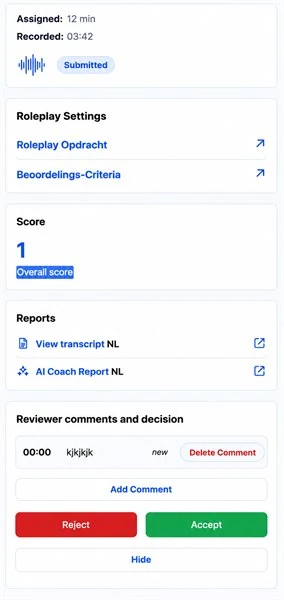
Click the red record button and wait for the green status bar and green microphone before you speak. If necessary, allow microphone access in the browser so the app can hear your voice. If you stop the roleplay before the session ends, the overall score will not be calculated and will be set to 1 point only. Scores range from 1 to 10, where 1 is the lowest and 10 is the highest. If you use this roleplay app in the car, make sure both navigation and Spotify are turned off!

AI Agent Voice Roleplay is ready.

Start recording to see the AI Agent and learner transcript here...

The AI Coach will measure the following main categories during the roleplay.

The AI Transcript Analyses will show your performance on the following items.

AI Avatar Roleplay

Use AI Avatar Roleplay when you want to practice a conversation with a visible speaking Avatar. Select the avatar and voice, start the session, and answer naturally when the status bar tells you to speak. The transcript and recording are saved with the roleplay settings used for that session. You can then load the recording in AI Transcript Analyses and use it for AI Coach feedback.

Roleplay Assignment (instructions for the person doing this assignment)

Choose the Avatar for your Roleplay AI Agent.

Choose the speaking Avatar and voice for your AI Agent in this roleplay conversation.

Select an avatar to preview its picture, Avatar ID, and available voices.

Adjust the speed to make the AI Agent speak slower or faster during the roleplay.

Choose the conversation length and start the recording.

Choose the session time, start the recording, and wait for the status bar before you speak.

LiveAvatar video panel 16:9 HD frame based on LiveAvatar 1920x1080 guidance.
Avatar roleplay is ready.

Avatar roleplay transcript will appear here without changing the current Practice transcript.

The AI Coach will measure the following main categories during the roleplay.

Discovery QualityHow well the learner asks questions and understands the AI Agent before presenting a solution.
ROI ArticulationHow clearly the learner connects the offer to measurable value, outcomes, or business impact.
Solution ClarityWhether the product, service, or answer is explained in a simple and structured way.
Objection HandlingHow effectively the learner responds to concerns, questions, doubts, or pushback.
Enterprise ScalabilityWhether the answer covers fit, rollout, reliability, governance, and larger-team use when relevant.
Credibility & TrustHow confidently and realistically the learner builds trust without vague or unsupported claims.
Closing EffectivenessWhether the learner creates a clear next step, owner, timing, or decision path.

The AI Transcript Analyses will show your performance on the following items.

Filler wordsCounts words and sounds such as eh, ah, um, so, actually, and similar fillers that can reduce clarity.
Keywords and key phrases (measured)Measures whether the learner uses the scenario keywords and important product or value phrases.
QuestionsCounts learner questions to show whether the learner is discovering needs instead of only presenting.
Customer concernsHighlights whether the learner addresses the AI Agent concerns configured in the scenario.
Speaking paceMeasures words per minute so the learner can see whether the conversation is too slow, too fast, or clear.
Transcript highlightsShows measured words and phrases directly inside the transcript for easier review after the session.
User: Company: Role:

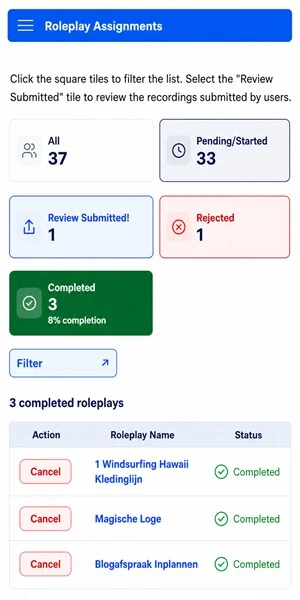
Assigned Roleplays

Filter Hide Filter

Manage Your Recordings

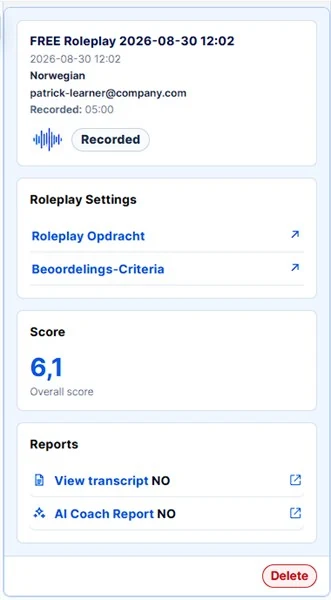
Use this page to manage saved roleplay recordings. Select a recording to load it into AI Transcript Analyses, review its recording status, roleplay name, language, and owner, or delete recordings that are still in Recorded status.

AI Transcript Analyses

Use AI Transcript Analyses to select and review saved roleplay recordings and transcripts. The page highlights filler words, measured keywords, questions, and important scenario terms so you can see what happened during the conversation. You can play or download the recording when audio is available and download the visible transcript. Loading a saved recording also restores the roleplay settings that belonged to that recording.

AI Coach Analyses

Use AI Coach Analyses to turn a completed roleplay into detailed coaching feedback. The analysis reviews what happened, the measured coaching categories, the AI Agent concerns, and roleplay-specific improvement points. For interview-style sessions, the app can also evaluate each interview question and your answer. You can export the visible report as a PDF for follow-up or coaching discussions.

AI Coach Analyses

Complete a roleplay to generate detailed feedback by category and key concern.

--

Clarity

--

Speaking pace

--

Content coverage

Tone

Roleplay Scenario Details